To access your Microsoft Teams, you should first activate and access your Learner Office365 account (guide here).
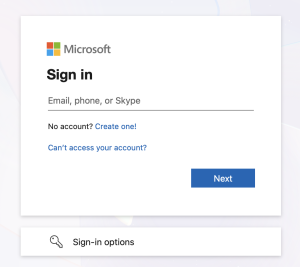
1) Go to Office 365 Login page (myapps.microsoft.com), and sign in with your Learner ID (xxxxxx@learning.lithan.com) and Password.
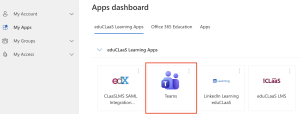
2) On the eduClaas Learning Apps pan, click the “Teams” icon.
3) Once the page loads, click on the settings/3-dot icon on the top right of the page, and click on “Download the desktop app“

4) Check your download history.

5) After the app downloads, run the app to install. Once installed, you will be greeted with a Welcome prompt. Click on “Get started” or the “Use another account, or sign up” option at the bottom, whichever is available.

6) Sign in with your Learner ID (xxxxxx@learning.lithan.com) and Password.

7) After signing in, you will come across this prompt below. Untick the blue checkbox, and click on “No, sign in to this app only”.

8) Once you have signed in successfully, click on the profile badge on the top-right, and then select “Lithan Academy Pte Ltd (Guest)” in the card that opens. You might be asked to sign in with your password again (for Windows users) and accept a permissions disclaimer.

8) Your Teams app will now show you your communications channel, where you can communicate with your peers, and trainers.

*If you do not see the “Lithan Academy Pte Ltd (Guest)” option from 1 day before the start of your course, you can email to ITSUPPORT@LITHAN.COM to highlight the issue.


