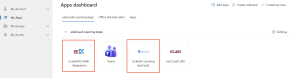
- Login with your student email and password on myapps.microsoft.com and click on ClaaSLMS SAML.
- Select you course and under course modules select ‘Module Calendar’ then click on ‘Join MS Teams Session’.

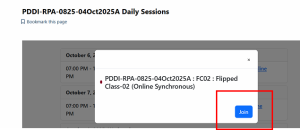
- Now select the date of the session you want to attend and click on ‘Join’.
(Note: The session links will be active 15 minutes prior the session time.)
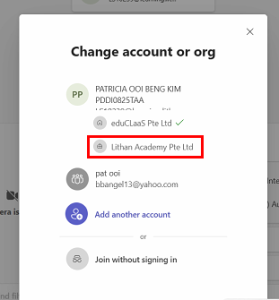
- Upon clicking Join it will open the Teams Desktop app, before joining make sure to change to “Lithan Academy“.
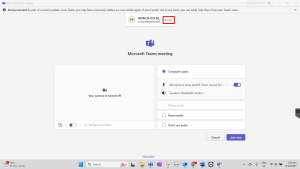
- Now click on “Join” and wait in the queue for someone to let you in.

How to Join MS Teams session


Powered by BetterDocs