To access your Learner email inbox, you should first activate and access your Learner M365 account (guide here).
1) Go to the Microsoft 365 login page (https://www.microsoft365.com/) and sign in with your Learner ID(xxxxx.learning.lithan.com) and password

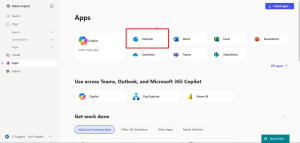
2) Once you are signed in, on the left in the left pane, click on the “Apps” button

3) When the page loads, you will see Outlook under the ‘Apps’ section. Click on it to open your student email inbox.
*Please take note that Lithan/eduCLaaS will communicate with you mainly on this email regarding your course matters. Kindly check your student inbox routinely.


