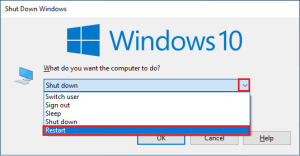
1) Restart PC.
If there are any temporary glitches in your PC, you will face Microsoft teams running slow issue. The general trick to resolve all the temporary glitches is to restart your computer.
2) Force Close Microsoft Teams.
If you’re experiencing slow speeds or lagging when using Microsoft Teams, then you need to know how to force close the app in order to fix these issues. Force closing the application can help improve your connection speed and eliminate any slowdowns you may be experiencing. If you want to enjoy a seamless Teams connecting experience in Teams, you must first completely close all the background processes of Teams and reopen them again.

This will close all the background processes associated with Teams. Check if you have fixed the discussed error code.
3) Run Microsoft Teams as Administrator.
This is one of the most common reasons that cause Microsoft teams takes forever to load issue on your Windows 10 PC. In this scenario, you can fix the discussed issue by following the below-listed instructions.
- Right-click on the Microsoft Teams shortcut on the desktop or navigate to the installation directory and right-click on it.
- Now, select the Properties option.

4) Then, switch to the Compatibility tab and check the box Run this program as an administrator.

5) Finally, click on “Apply” and “OK” to save the changes.
6) Clear DNS Cache & Data.
- Few users have suggested that clearing the DNS cache and data on your PC has helped them fix Microsoft team lagging issue. Follow as instructed.
- Hit the Windows key and type cmd. Then, click on Open.

- Now, type the following commands one by one. Hit Enter after each command.
- ipconfig/flushdns
- ipconfig/registerdns
- ipconfig/release
- ipconfig/renew
- netsh winsock reset

- Wait for the commands to be executed and restart your PC.
7) Update Windows.
Fortunately, Microsoft provides frequent updates for its operating systems that include fixes for any bugs or glitches that may be causing these types of problems. Hence, ensure if you have updated your Windows Operating System and if any updates are pending in action.

After updating your Windows Operating System, check whether you can access your Teams without any errors.


