You might face issues where the MS Teams app does not startup properly, for example it is stuck at loading, your in-apps do not load, or there is some trouble when you try to sign in. This info-guide highlights what you can do to fix those issues.
*Before you attempt a fix for your issues, try logging in to your Microsoft Teams account on a browser (Google Chrome recommended) at teams.microsoft.com to check if the error is strictly happening on the desktop app [Do take note there are some limitations to functions in meetings and in-apps when you use the web version of MS Teams]. If it is, follow the methods below to fix your login issues:-
Method 1 – Restart the Teams app #
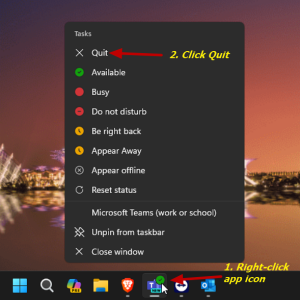
- Quit Microsoft Teams – Right-click the Teams icon on your taskbar and select ‘Quit’. Once it is completely closed, run the app again.
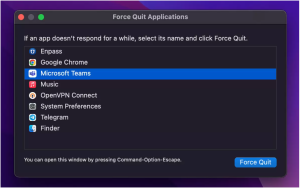
- For Mac – Press the Option, Command, and Escape keys at the same time. A dialogue box will appear showing a list of applications you can force quit. Select MS Teams and click Force Quit in the bottom right corner of the dialogue box.
Method 2a (Windows) – Clear the Teams cache #
- First, open the Task Manager. You can do this by pressing the Ctrl + Shift + Esc keys on your keyboard, by right-clicking on the taskbar (a) or by clicking on the Start/Windows button and typing ‘task manager‘(b) and selecting “Task Manager”.
a. 
b. 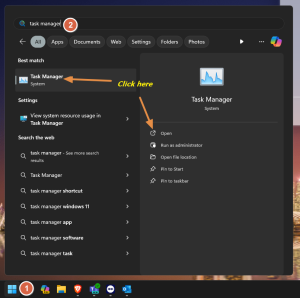
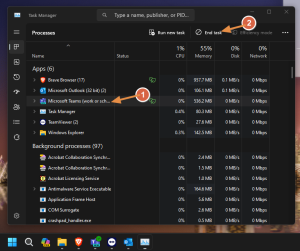
- Once you have the Task Manager open, locate the Microsoft Teams process and click on it once to select it, then click “End task.” This will ensure that the program is fully closed before you start the next step
- Open the “Run” app by pressing the Windows key +R keyboard shortcut. Copy and paste “%appdata%\Microsoft\teams\” and press Enter. [For New Teams app, you need to enter “%userprofile%\appdata\local\Packages\MSTeams_8wekyb3d8bbwe\LocalCache\Microsoft\MSTeams“]
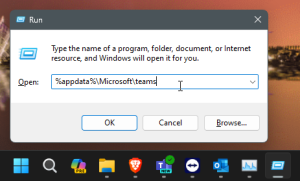
- The File Explorer will open with your Teams app cache files in it. Press the Ctrl + A keys to select all the files in the folder, then press the Shift + Del keys to delete them. Confirm the deletion process and wait until it’s completed. [You might get some warning pop-ups saying some files can’t be deleted, which simply means that the app has not been shut down properly. Go back to the start of this method, and make sure the app is completely shut down first before deleting the cache files.]

- After you have cleared the files from the Teams folder, close all windows, refresh the desktop once, and launch the Teams app. Depending on your PC/Laptop specs and network speed, it can take about 5-15 mins for Teams to rebuild your cache.
Method 2a (Mac) – Clear the Teams cache #
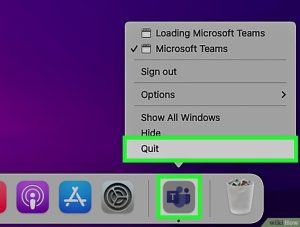
- When the application Microsoft Teams is not open anymore, find the MS Teams icon on your Mac’s dock and right-click on it. Select Quit.
- (a)Go to Finder > Go > Go to Folder. Then, (b)input the directory path “~/Library/Application Support/Microsoft/Teams.” [If you are using the New Teams app, you also need to do the following steps at this directory path “~/Library/Group Containers/UBF8T346G9.com.microsoft.teams” and “~/Library/Containers/com.microsoft.teams2” and delete the contents of those folders.]
a. 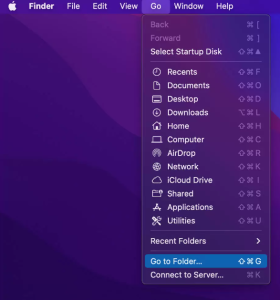
b.
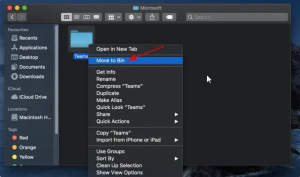
- Delete the Teams folder.
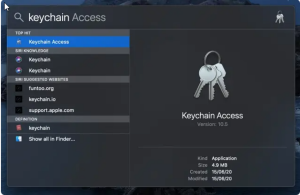
- Press the Command + Space keys to open Spotlight Search. In the search bar, type in “Keychain,” then select Keychain Access from the search results.
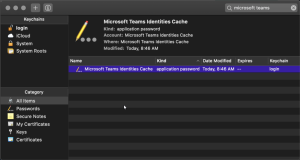
- Search for Microsoft Teams Identities Cache (may be multiple files if have multiple accounts). Delete Microsoft Teams Identities Cache.
- After that, launch MS Teams again.
Method 3 – Reinstall Microsoft Teams #
If none of the above methods work, reinstalling Teams may help resolve the login issues. This can be done by accessing the application and selecting the option to uninstall Teams, then installing a new version.
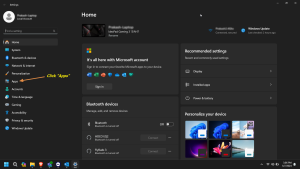
- Press the Windows + I keyboard shortcut to open the settings window. Click on “Apps” on the left side of the window.
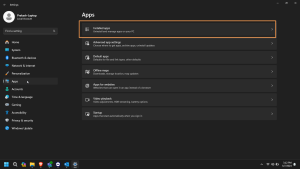
- Choose “Installed apps” from the options that appear.
- Scroll down until you find “Microsoft Teams” in the list of apps installed on your computer. You should see a 3 dots menu on the right of the app name. Click on it and select “Uninstall” from the options that appear.
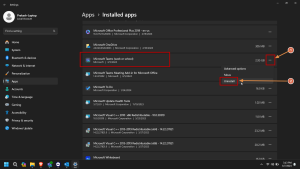
- Follow the prompts that appear on the screen to complete the uninstallation process.
- After Microsoft Teams has been uninstalled, you can “Download the classic Teams desktop app” or “Download the New Teams desktop app“ it again.
- Once downloaded, install the app on your computer and try logging in to see if the error has been fixed.


