1) Open Microsoft Teams and click on the “3 dots” right beside your profile picture and select “Setting”.

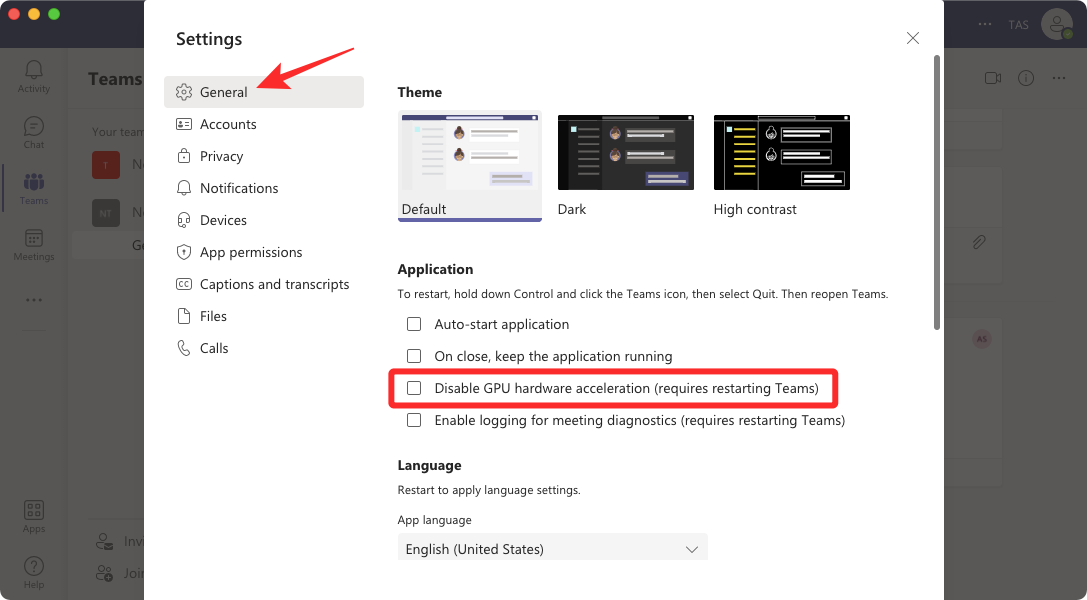
2) Inside Settings, select “General” from the left sidebar and “Uncheck” the “Disable GPU hardware acceleration” box.
3) Clear Teams’ cache
- For this, force-quit Microsoft Teams from your Task Manager.
- On your keyboard, press the Windows logo key and Search ( %appdata%\Microsoft\teams ).
- Under this folder, open each subfolder and delete these files and subfolders inside each one of them:
- blob_storage
- Cache
- databases
- GPUCache
- IndexedDB
- Local Storage
- tmp
That’s all you need to know about fixing Microsoft Teams not showing images issue.


