Your Microsoft 365 Learner account is the first platform you should activate and access in order to proceed with accessing your other learning platforms assigned to you. Follow the steps below to begin setting up your Learner M365 account.
1) Open the Microsoft 365 Login page (https://www.microsoft365.com/), and click on “Sign in”.

2) Enter your Learner Email ID & Temporary Password that has been sent to you in your personal email.

3) You will be asked to change your password the first time you login to your account.

4) When you see the “Action Required” prompt on the screen after setting your new password, click “Next”.

5) On the “Keep your account secure” page, click Next. At this time, please download the “MICROSOFT AUTHENTICATOR” app on your Android phone (Google PlayStore) or iPhone (App Store), and run the app on your phone.

6) Click Next on the “Set up your account” prompt to continue with the authentication process.

7) A QR Code will be shown, and you need to scan it with the Microsoft Authenticator app you just installed.

8) On the Microsoft Authenticator app, click on “Add Account”. If you do not see the add account option on your phone screen, then click on the ‘+’ sign/3 dots icon appearing on the top right side of your mobile.
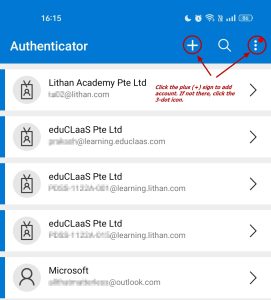
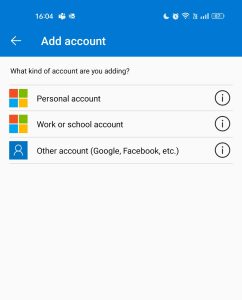
9) Click “Work or school account”.
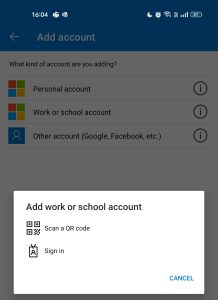
10) Click “Scan QR Code” then scan the code.
11) Click “Approve” on your phone.

12) Back on your computer screen, click Next.
13) You will be shown a “Let’s try it out” prompt with a number on the screen, like this.

14) On your phone, you will get a notification that looks like the one below. Enter the number from your computer into your phone, and click “YES”.
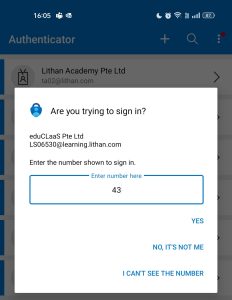
15) When your computer shows you “Notification approved” prompt, click Next.

16) In the following page, enter your country code and phone number to receive a code via text. This is to set up your second authentication (2FA) method. Click Next, and wait for your code.

17) When you receive your 6-digit code on your phone, type it in the box and click Next.

18) Click Next on the following prompt.

19) Click Done.

20) On the next page, click Yes and you will be directed to your Learner M365 account dashboard.

21) Congratulations, you can now access your Learner account. Click on the ‘Apps’ button on your left to reach and access your Student Outlook inbox, and Learning platforms under the ‘Get work done’ section.


*While this is a one-time/periodic process, you might be asked to authenticate your account in some cases, for example when you login to a new device, or trying to access your Learner account while you are overseas. Simply authenticate with your Microsoft Authenticator app, or activate roaming service for your registered number to authenticate via SMS code.


