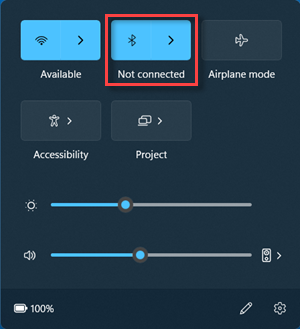
- Check in quick settings: Select the Network, Sound, or Battery iconson the right side of the taskbar, look for the Bluetooth quick setting, then select Bluetooth to turn it on. You’ll see “Not connected” if your Windows 11 device isn’t connected to any Bluetooth accessories.
- Check in Settings: Select Start > Settings > Bluetooth & devices . Make sure Bluetooth is turned on.
- When you turn Bluetooth on in Settings, the following message appears immediately:
- “Discoverable as <computer_name>“
Check your Bluetooth device #
Make sure your Bluetooth device is turned on, is charged or has fresh batteries, and is in range of your PC. Then, try the following:
- Turn off your Bluetooth device, wait a few seconds, then turn it back on.
- Make sure your Bluetooth device is in range. If your Bluetooth device is unresponsive or sluggish, check to make sure it’s not too close to any other USB device that’s plugged into a USB 3.0 port. Unshielded USB devices can sometimes interfere with Bluetooth connections.
Change the Bluetooth devices discovery setting #
If you don’t see your Bluetooth device displayed in the list of devices, you may need to set your Bluetooth devices discovery setting to Advanced.
- Select Start > Settings > Bluetooth & devices > Devices .
- Under Device settings > Bluetooth devices discovery, choose one of the following from the drop-down list:
- Default—displays common Bluetooth devices
- Advanced—displays all types of Bluetooth devices
- If you still don’t see your Bluetooth device displayed after choosing the Advanced setting, try the solutions listed below.
Check your PC #
On the PC you want to pair to:
- Make sure airplane mode is off: Select the Network, Sound, or Battery icons on the right side of the taskbar, then make sure the Airplane mode quick setting is turned off.
- Turn Bluetooth on and off: Select Start > Settings > Bluetooth & devices . Turn off Bluetooth , wait a few seconds, then turn it back on.
- Remove the Bluetooth device, then add it again: Select Start > Settings > Bluetooth & devices > Devices . In Devices, select More options for the Bluetooth device you’re having problems connecting to, and then select Remove device > Yes. To learn more about pairing your Bluetooth device again, see Connect a Bluetooth device.
When Bluetooth doesn’t work or the Bluetooth icon is missing #
Try these steps if your Bluetooth isn’t working. Here are some other common problems:
- The Bluetooth icon is missing or Bluetooth can’t be turned on or off.
- Bluetooth doesn’t work after a Windows update is installed.
- Bluetooth doesn’t work after you upgrade to Windows 11 from Windows 10.
- Bluetooth doesn’t appear in Device Manager, and there are no unknown devices listed.
To get started, select a heading to see more info.
- Run the Bluetooth troubleshooter
Select Start > Settings > System > Troubleshoot > Other troubleshooters . Next to Bluetooth , select Run and follow the instructions.
- Make sure you have the latest drivers
If you recently upgraded to Windows 11 or installed Windows 11 updates, the current driver may have been designed for an earlier version of Windows. To automatically check for driver updates:
- Select Search on the taskbar, type for device manager, and then select Device Manager from the list of results.
- In Device Manager, select Bluetooth, and then select the Bluetooth adapter name, which may include the word “radio.”
- Press and hold (or right-click) the Bluetooth adapter, and then select Update driver > Search automatically for updated driver software. Follow the steps, then select Close.
- After installing the updated driver, select Start > Power > Restart if you’re prompted to restart, and then check whether that fixes the connection issue.
If Windows can’t find a new Bluetooth driver, visit the PC manufacturer’s website and download the latest Bluetooth driver from there.
Important: An outdated or incompatible driver is one of the most common causes of Bluetooth connection problems.
To manually install the Bluetooth driver:
Go to your PC manufacturer’s website and download the latest driver. Then do one of the following:
- If you downloaded an executable (.exe) file, just double-click the file to run it and install the drivers. That should be all you need to do.
- If you downloaded individual files, and at least one file has an .inf file name extension and another has a .sys extension, do the following:
- Select Search on the taskbar, type device manager, and then select Device Manager from the list of results.
- In Device Manager, select Bluetooth > the Bluetooth adapter name. (If it’s not listed there, check in Other devices.)
- Press and hold (or right-click) the network adapter, and then select Update driver > Browse my computer for drivers.
- Select Browse, select the location where the driver files are stored, and then select OK.
- Select Next, and follow the steps to install the driver. When the installation is finished, select Close.
- After you’ve updated the driver, select Start > Power > Restart if you’re prompted to restart, and check whether that fixes the connection issue.


